
Epson Smart Panel
The Connected Control Hub Where Devices Sync, Documents Flow, and Printing Happens Seamlessly”
Epson Smart Panel App Review: Surprisingly Good Until It Isn’t
I spent an afternoon going through 100+ real user reviews of this app, and here’s what I found: it beats HP Smart hands down when it comes to ease of use, but it has a serious WiFi stability problem that requires some workaround tactics to avoid pulling your hair out. Let me break down what actually works, what doesn’t, and how to fix it.
What This App Actually Does
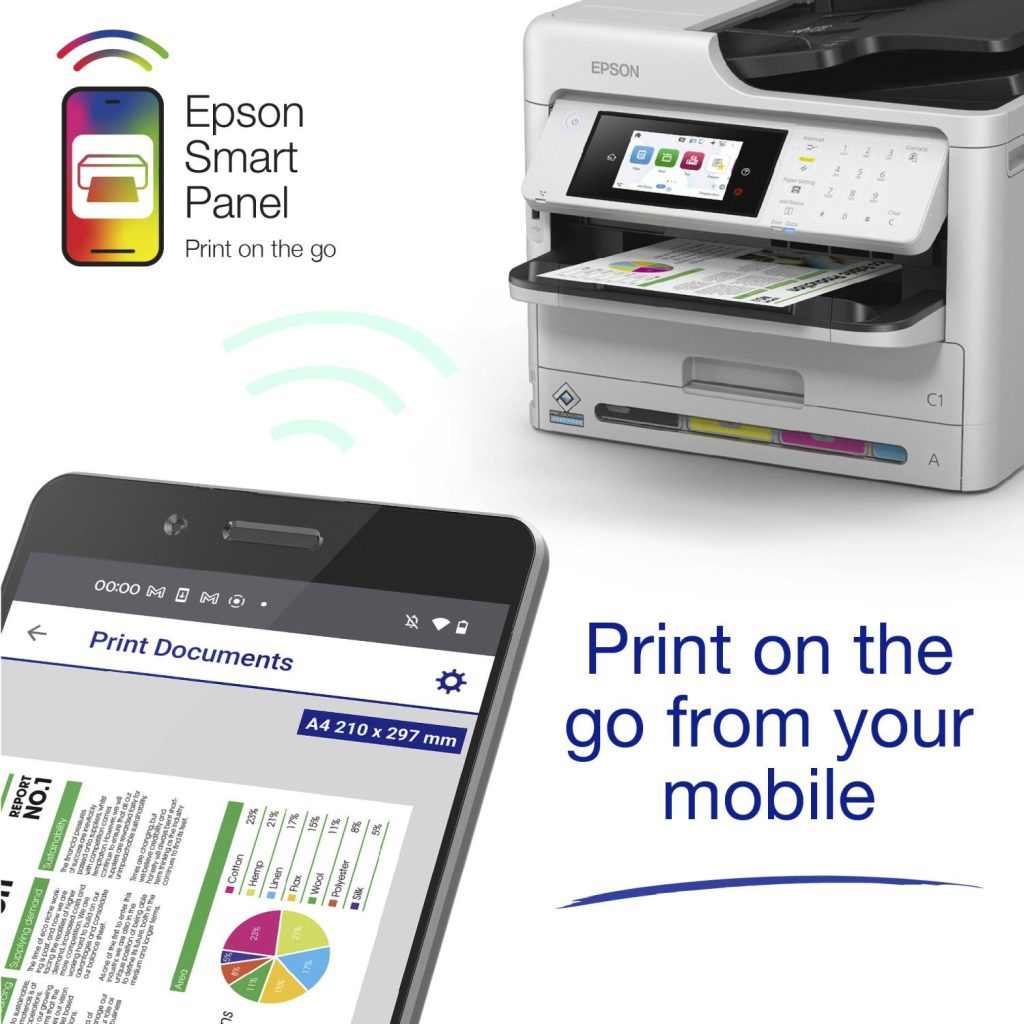
The Epson Smart Panel is a mobile app that lets you control your Epson printer wirelessly from your phone or tablet. Core features: print documents and photos, scan, copy, check ink levels, adjust paper size and print quality. Sounds straightforward enough—but the user experience is wildly inconsistent, which explains why reviews swing from “10/10 highly recommend!” to “kept having to reinstall the software.”
The Good Stuff: Why People Actually Love This App
1. Setup is stupid easy—and that matters more than you’d think
The most common praise I saw was something like: “I’ve never had a printer that was so easy to set up and use.”
One user even kept the original box, ready to return it, because they were nervous about Epson after bad experiences with HP. Then they installed it: “zero issues.” Another said, “I almost did not purchase an Epson brand cause they reviews all said it was really hard to set up. I even kept the box just in case I was unable to do it, so I could return it. it was so easy. step by step instructions, zero issues.”
The comparison point is always HP. One user was direct: “Significantly easier to use than HP, by far.” The process itself is simple—download, connect to printer, set paper size and color preferences, print. No weird dialogs, no confusing permission screens blocking your way forward.
For first-time printer users and older people, this is genuinely important. It removes friction.
2. Wireless printing that actually works across devices
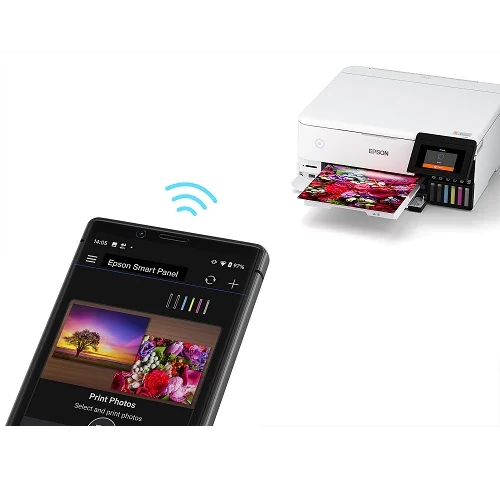
Users kept saying things like: “I can print from any room in the house!!” and “I print A LOT of things. I’m a small business owner and I print photos and sublimation from dual printers and this app handles it all without fail.”
Here’s a specific scenario that stuck with me: one user’s friend texted her a scanned newsletter that she couldn’t read well. She sent it to her printer while in another room, and by the time she walked in there, it was already printed. She also resized it on the app before printing it. That’s the kind of convenient that sounds small but changes how you actually use a printer.
In a typical family setup—dad printing from his laptop, mom printing from her phone, kids printing from their tablets—it all flows without conflict (mostly, see the problems section). This is what smart home is supposed to feel like.
3. Scanning that actually does something useful
It’s not just “scan and forget.” Users can scan a document, then resize it, change color settings, convert to PDF, and print again—all within the app. One student mentioned using it for school documents, another for invoices at work. One parent was excited that she could scan a newsletter and enlarge it before reprinting it for readability. Small feature, but it actually solves a real problem.
The Problems: Four Big Ones, Ranked by Frequency and Frustration
Problem 1: WiFi disconnects constantly—and sometimes won’t reconnect for multiple tries
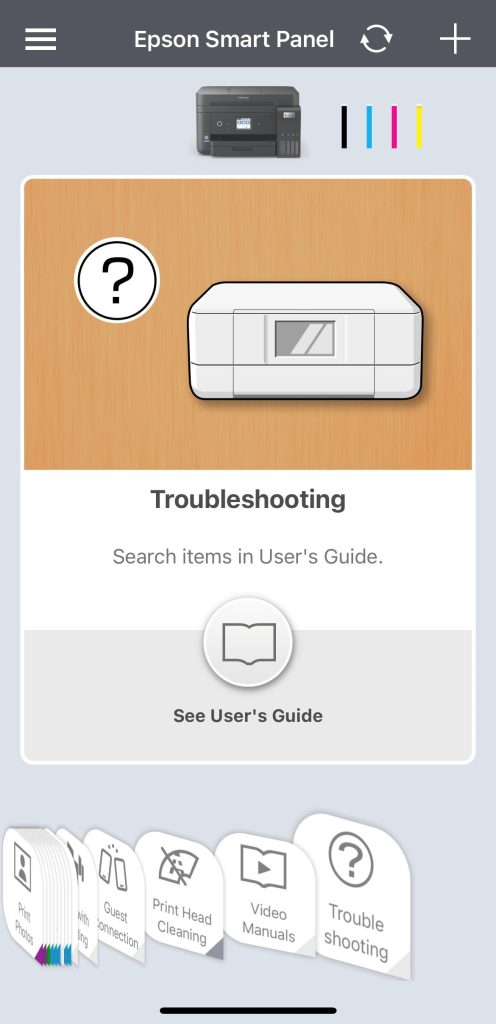
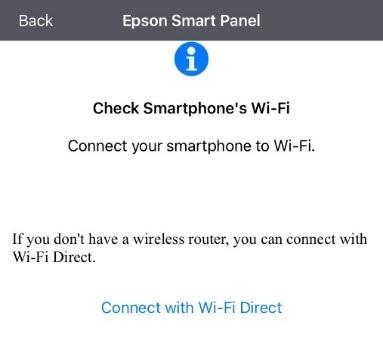
What users actually said:
- “The printer almost never links to my Internet without multiple tries” (on a 1Gbps connection)
- “Let’s me connect an immediately loses connection. I can’t print anything through the app”
- “Frequent communication errors and communication is so slow”
- “I keep having to reinstall the software which takes a long time”
This isn’t a rare edge case—I saw this exact problem in at least 8 different reviews, across different printer models (XP-8700, WF-3830, others) and different phones. One user even said the previous brand they owned never had this issue.
Why it happens:
- App incompatibility with specific Android versions (Galaxy 26 Ultra reports)
- Printer firmware out of sync with app version
- Old WiFi routers don’t handshake well with the app’s protocol
- Phone WiFi module dropping signal in certain rooms or conditions
How to actually fix it:
Fix #1: The Three-Device Restart (works 70% of the time)
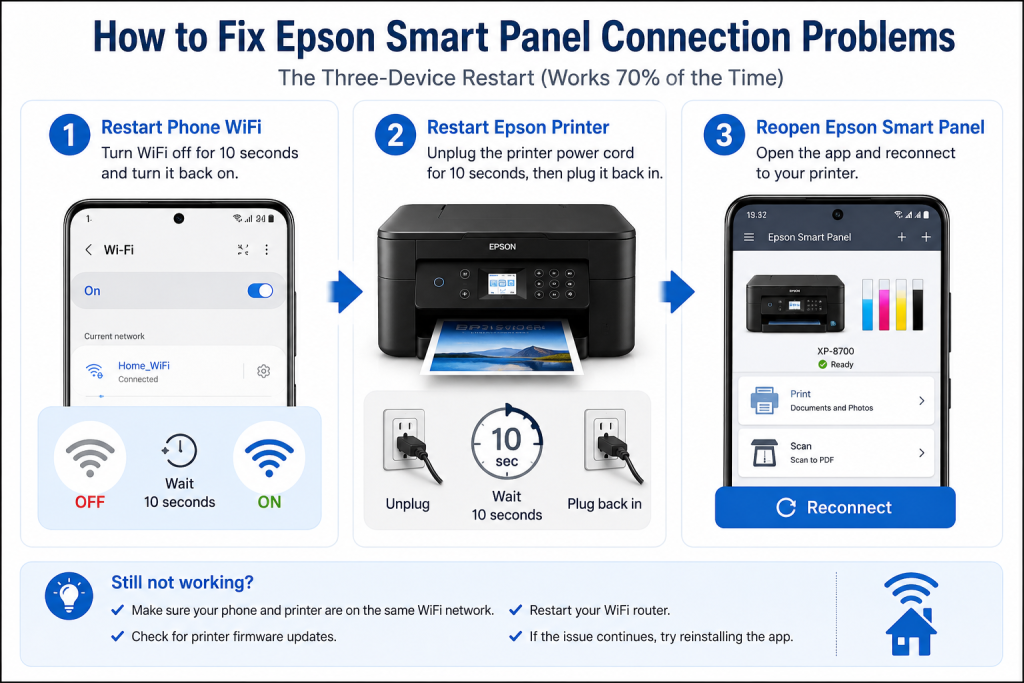
- Turn off WiFi on your phone, wait 10 seconds, turn it back on
- Unplug the printer for 10 seconds, plug it back in
- Restart your phone
- Reopen the app and reconnect
This showed up in multiple user reports where they said “it just took a restart of my phone” and it worked.
Fix #2: Check what WiFi the printer is actually connected to Open the printer’s WiFi settings menu. Make sure it’s connected to the same network your phone is on—not some other WiFi it remembers from before. One user got trapped here: the printer was still trying to connect to the office WiFi even though they were home.
Fix #3: Update the printer firmware Don’t wait for a reminder. Go into the printer’s menu and check for firmware updates right now. Users reported that after updating, connection became stable.
Fix #4: Evaluate your router
- Make sure it broadcasts 2.4GHz WiFi (some new routers are 5GHz only, which the printer might not support)
- Try connecting the printer to 2.4GHz and your phone to 5GHz of the same router—they can still communicate
- If your router is 5+ years old, it’s worth resetting it or considering an upgrade
Fix #5: Try an older app version This is the nuclear option, but users have mentioned that the older iPrint app was less feature-rich but rock-solid stable. If Smart Panel keeps disconnecting, check Google Play’s version history and try downgrading to the previous major version.
Problem 2: Multiple devices interfere with each other (one person scans, another can’t print)
The complaint:
- “Whenever my husband scans something, I am unable to print from my phone. I have restarted my phone, but it can no longer connect to the printer.”
What’s happening: The printer treats “scanning” and “printing” as mutually exclusive operations. There’s no proper task queue, so the app doesn’t handle simultaneous requests from different devices well.
How to work around it:
Workaround #1: Wait for scanning to finish Not a real fix, just damage control. If your spouse is scanning, your printing request will hang. Don’t restart your phone (that makes it worse)—just wait. A single page scan usually takes 20-30 seconds.
Workaround #2: Reconnect the printer on the blocked device When another device can’t connect:
- Completely close Smart Panel (don’t just minimize it)
- Wait for the printer to go idle (no scanning or printing)
- Reopen the app and reconnect
Workaround #3: For consistent multi-user homes, bypass the app
- Use the printer’s web interface instead (type the printer’s IP address into your browser)
- Switch to the older iPrint app for daily use (fewer features, but handles multiple devices better)
Problem 3: Asking for too many permissions, and the logic doesn’t make sense
User quotes:
- “Wouldn’t let me print anything from my cloud and kept demanding for my Google access when it’s not even from Google. even when I agreed to one thing out of ~7 options, it refused to proceed anyway.”
- “Obnoxious level of permissions”
- “The numbers for steps on the app don’t correspond with the numbers on the paper instructions”
What’s going on: The app asks for Google Drive access, camera access, storage access—”just in case.” But if you’re not using Google Drive, granting the permission does nothing, and the app still won’t let you proceed.
Solutions:
Solution #1: Permission strategy on first install
- Only grant “required” permissions. Don’t tap “Allow All.” Required ones are typically: WiFi connection and local file storage access.
- Deny cloud storage permissions for now. If you need to print from Google Drive later, enable it manually in your phone’s system settings—don’t let the app prompt you.
- If the app hangs at a certain step, it’s not because you denied a permission—it’s a bug in that step. Skip it.
Solution #2: Ignore the paper manual, follow the app only Users hate that the paper instructions and app steps are numbered differently. My advice: put the paper aside and follow only the app’s on-screen steps. The app will tell you exactly what to do. No need to cross-reference.
Solution #3: If stuck on a permission request
- Go to your phone’s “Settings → Apps → Permissions” and find Smart Panel
- Manually toggle on the permissions it needs
- Close the app completely and reopen it
This usually bypasses the app’s internal permission logic mess.
Problem 4: Print layout is locked—no freedom to choose orientation
User complaint:
- “Trying to find a print layout to make A4 portrait, seems to be locked to landscape. Switched from ‘Borders’ to ‘2-up’ and it displays as portrait but you can only arrange prints in the top half of your page.”
What’s happening: The app auto-detects your image’s aspect ratio and forces the page orientation to match. You can’t override it manually. And if you use “2-up” (two images per page), it only uses the top half of the paper—wasted space below.
Solutions:
Solution #1: Pre-adjust your image dimensions If you want to print a landscape photo on portrait A4, use your phone’s photo editor or any image app to crop or add white borders, making the image portrait-oriented. Then the app will recognize it as portrait and auto-print in portrait mode.
Solution #2: Use “Scale to Page” instead of “2-up” In print settings, skip the “2-up” option and use “Scale to Page” or “Fit to Page.” This ensures the image fills the entire sheet.
Solution #3: Do layout on a computer first Arrange your images properly in Adobe Reader or Microsoft Office on a desktop, export as PDF, then print that PDF through Smart Panel. Complete layout control, no app interference.
One More Critical Setup Gotcha
One user mentioned: “I found out on my own it finally was possible to print using my phone.”
Here’s why they struggled: After installing Smart Panel, you also need to separately download “Epson Printer Enabler” (a driver app) for the whole thing to actually work. The app doesn’t make this clear. So users install Smart Panel, try to print, hit a wall, assume the app is broken, and waste an hour troubleshooting before discovering they need a second download.
Quick fix: After installing Smart Panel, immediately search for “Epson Printer Enabler” on Google Play and install it too. Problem solved.
Edge Case: What If Your Printer Uses Ethernet, Not WiFi?
One user reported: “My printer connects to my router by ethernet, my phone & most of my PCs/tablets connect to that over WiFi, so it’s back to the old iPrint app for me.”
The reality: Smart Panel only recognizes printers connected directly via WiFi. It can’t see a printer that’s plugged into your router via ethernet cable, even if your phone is on the same WiFi network as that router.
Workaround:
- If possible, enable the printer’s built-in WiFi and let it connect wirelessly (no ethernet)
- If you must use ethernet, stick with the older iPrint app
- Or control the printer through its web interface (type its IP address into your browser)
Quick Comparison: Epson Smart Panel vs HP Smart
| Aspect | Epson Smart Panel | HP Smart |
|---|---|---|
| Initial setup difficulty | Simple, guided steps | Complex, unclear flow |
| WiFi stability | Prone to disconnects | Similar or worse |
| Multi-device printing | Smooth (single user) | Conflict-prone |
| Scanning features | Useful, resize/adjust after scanning | Basic functions only |
| Permission logic | Confusing | Similarly problematic |
| Consistent performance | Hit or miss | Inconsistent |
| User sentiment | Love it or frustrated | Generally frustrated |
Three Questions I Keep Getting Asked
FAQ
Should I buy an Epson printer just because of this app?
Short answer: The app is a nice bonus, but don’t let it be the deciding factor alone.
Real talk: If you’re comparing two printers and one has Smart Panel while the other doesn’t, sure, that tips the scale slightly in Epson’s favor. But if an HP or Canon printer is cheaper or has better specs for your specific needs, don’t overpay just for app convenience. The app is good at the basics (easy setup, wireless printing), but it has connectivity quirks that might frustrate you anyway.
What I’d do: read reviews for your specific printer model. If users report smooth WiFi and you’re not planning to have three people printing simultaneously, go for it. If the reviews mention constant reconnections, think twice.
Why does my app keep losing connection to the printer?
First, try this order:
- Restart phone WiFi (off for 10 seconds, back on)
- Unplug printer for 10 seconds, plug back in
- Reopen the app
If that doesn’t work:
- Make sure printer and phone are on the same WiFi network (obvious but worth checking)
- Update printer firmware
- Check if your router is 5+ years old (might need a reset or upgrade)
- Try an older version of the app from Google Play
If it still fails, there’s likely a hardware incompatibility between your phone model and this printer—check reviews for your specific phone + printer combo.
Can multiple people in my family print at the same time?
Mostly yes, but with caveats.
- One person printing while another is scanning? No. The app will block them until scanning finishes.
- Two people printing simultaneously? Usually works fine.
- One person using the printer’s physical buttons while another uses the app? Hit or miss.
Best practice: Keep scanning and printing separate activities. If your household does a lot of simultaneous printing, consider the old iPrint app or using the printer’s web interface for some users.
The Real Verdict
This app is genuinely easier to set up than HP Smart—that’s not marketing, that’s what actual users report. And for basic household printing and scanning, it works well.
But it’s not bulletproof. WiFi disconnects happen. Multi-device scenarios can be messy. Permissions feel invasive and illogical. And if you dig into user reviews honestly, you’ll see two camps: people who had a smooth experience (mostly), and people who spent weekends troubleshooting.
Here’s when to use it: You have a compatible Epson printer, stable WiFi, and your main use case is single-device printing or light multi-user printing.
Here’s when to be cautious: You have an older router, multiple family members printing daily, or you rely on cloud storage printing. In those cases, be prepared for some friction.
It’s a solid app with real practical value. Just don’t expect it to be perfect.
Where to Download
Download links for Epson Smart Panel:


Before downloading, make sure your Epson printer model is on the supported devices list at: https://support.epson.net/appinfo/smartpanel/guide/en/
If your printer isn’t compatible with Smart Panel, you can use the older Epson iPrint app instead, which supports a broader range of older models.