
CapCut:Photo & Video Editor
An all-in-one, AI-powered photo and video editing app for creating stunning content.

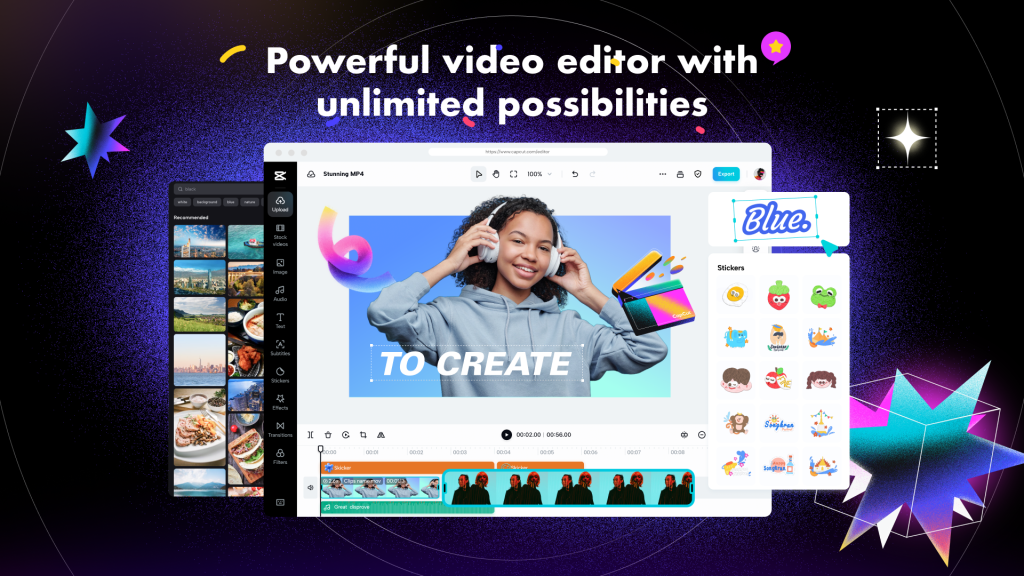
CapCut App Review: The Ultimate Free Video Editing Tool for Creators
What Is CapCut?
CapCut is one of the most popular video editing applications available today. Developed by ByteDance, the company behind TikTok, CapCut provides powerful video editing features that are easy enough for beginners yet advanced enough for professional content creators.
Originally designed as a mobile video editor, CapCut has evolved into a complete content creation platform that supports smartphones, tablets, desktop computers, and web browsers. Users can create high-quality videos for social media, marketing campaigns, educational content, and personal projects without needing expensive editing software.
One of the biggest reasons for CapCut’s popularity is its combination of simplicity and professional-grade features. Many editing tools that are locked behind paywalls in competing apps are available for free or at a lower cost through CapCut.
Key Features of CapCut
CapCut offers a wide range of tools that help users create engaging videos quickly and efficiently.
Video Editing Tools
Users can trim, split, crop, rotate, and merge video clips with just a few taps. The timeline interface is intuitive, making it easy to organize footage and create smooth transitions.
AI-Powered Features
CapCut integrates artificial intelligence into many editing tasks, including:
- Automatic captions
- Background removal
- AI voice generation
- Text-to-speech
- AI script writing
- Auto-reframe for social media formats
These tools significantly reduce editing time and improve productivity.
Effects and Filters
The platform includes hundreds of visual effects, transitions, animations, stickers, and cinematic filters. Creators can easily enhance videos without advanced editing skills.
Audio Editing
CapCut allows users to add music, sound effects, voiceovers, and audio enhancements. Noise reduction and audio synchronization tools help produce professional-quality content.
Templates
Ready-made templates are especially popular among TikTok and Instagram creators. Users simply upload their photos or clips and generate viral-style videos within minutes.
How to Use CapCut
Getting started with CapCut is simple, even for first-time editors.
Step 1: Download and Install
Install CapCut from the App Store, Google Play Store, or use the desktop version through the official website.
Step 2: Create a New Project
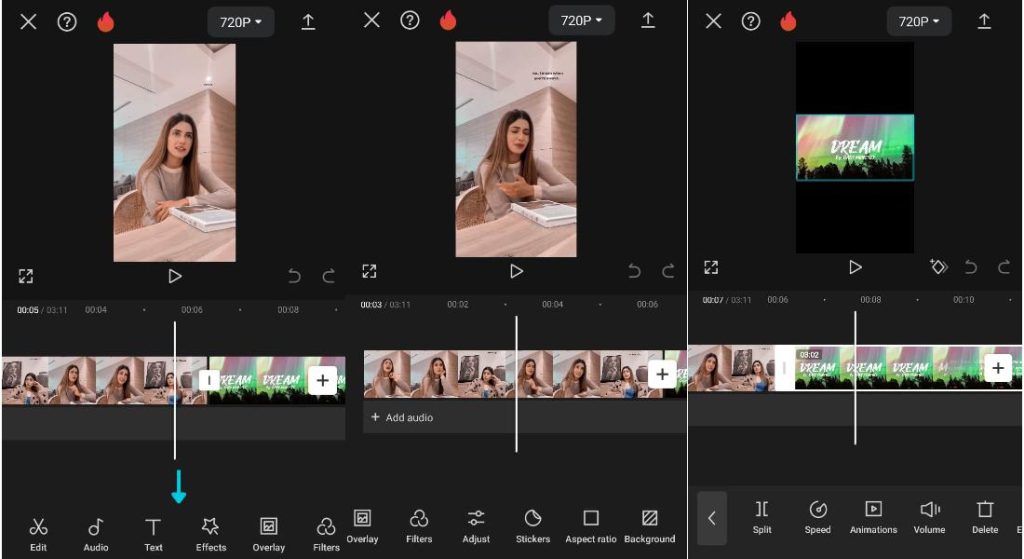
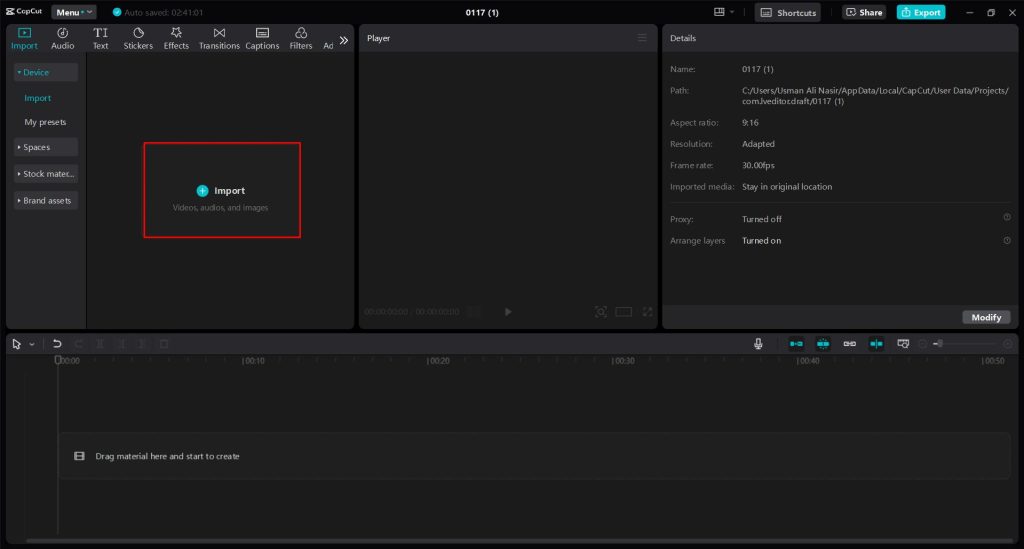
Open the app and select “New Project.” Import videos, images, or audio files that you want to edit.
Step 3: Edit Your Content
Use the editing timeline to:
- Trim unwanted sections
- Rearrange clips
- Add transitions
- Insert text overlays
- Apply effects and filters
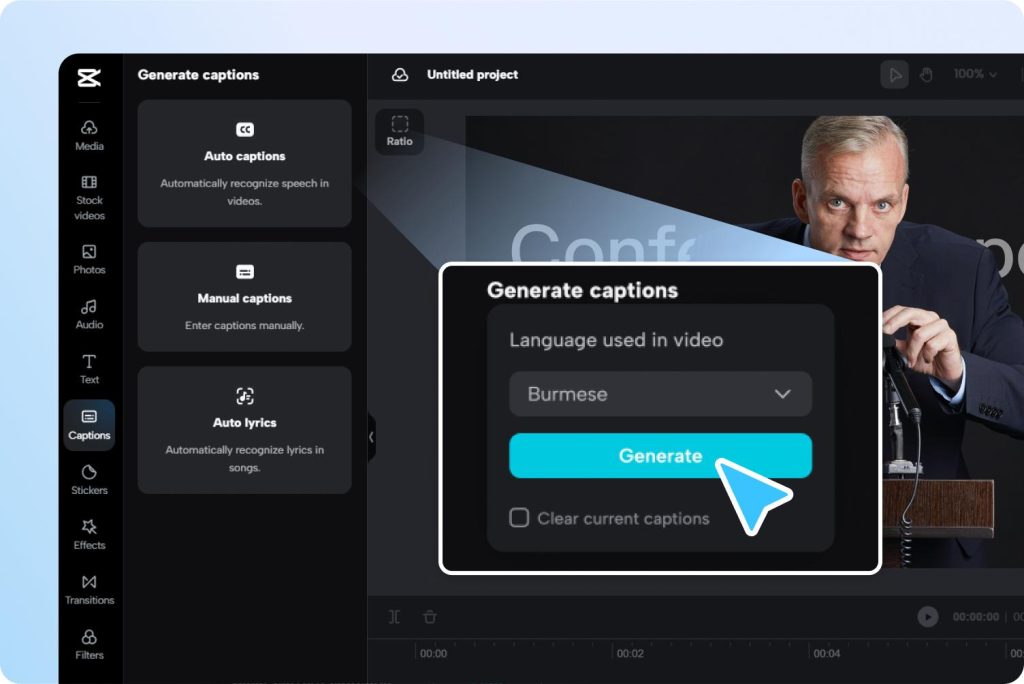
Step 4: Enhance With AI Tools
Generate subtitles automatically, remove backgrounds, or create AI voiceovers to make your content more engaging.
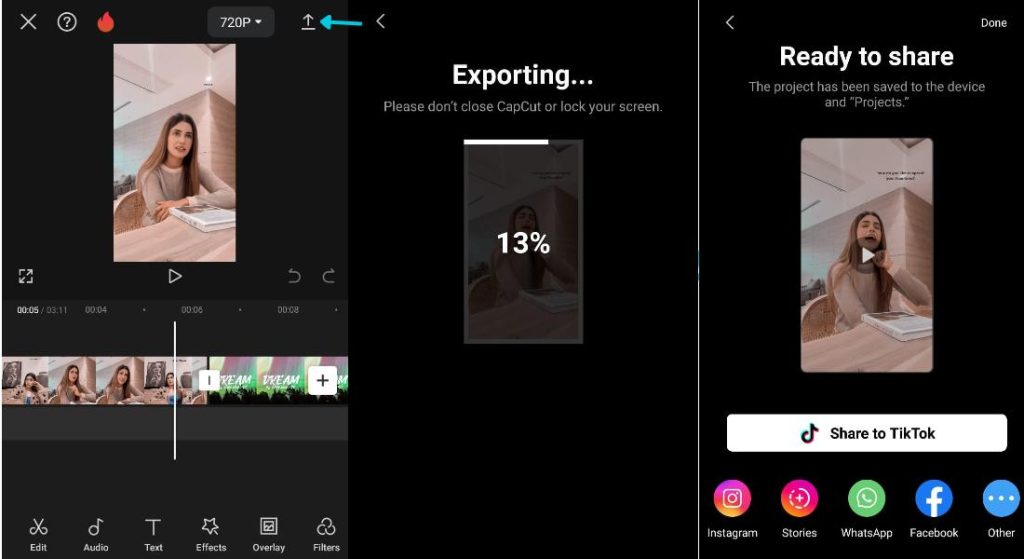
Step 5: Export and Share
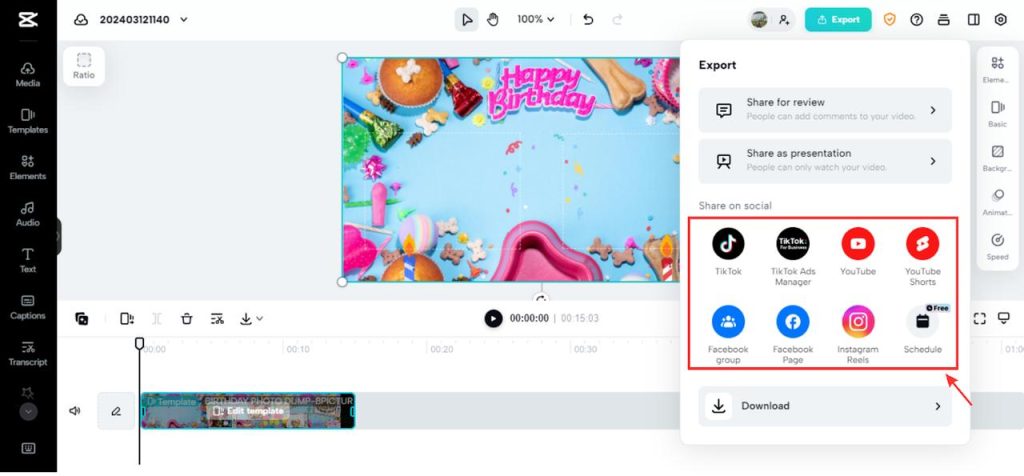
Choose your preferred resolution and frame rate. Once exported, videos can be shared directly to TikTok, Instagram, YouTube, Facebook, and other platforms.
Experience of Using CapCut
After using CapCut for both short-form and long-form content creation, it becomes clear why the app has gained such a large user base. The learning curve is remarkably low. New users can start editing within minutes, while experienced editors can take advantage of advanced features like keyframe animation, masking, chroma key effects, and motion tracking.
The AI-powered caption generator is particularly useful for social media videos, where subtitles significantly improve viewer engagement. The built-in templates also save a considerable amount of production time.
Another standout feature is cross-platform synchronization. Projects can be started on a mobile device and continued on a desktop computer, creating a flexible editing workflow.
However, some advanced AI features require a premium subscription, and larger projects may occasionally experience performance issues on lower-end devices.
Pros and Cons
✅ Pros
✅ Beginner-Friendly Interface
CapCut features a clean and intuitive design that makes video editing accessible even for users with no prior experience. Most tools are easy to locate and use, reducing the learning curve significantly.
✅ Powerful Free Features
Unlike many competitors, CapCut offers advanced editing tools such as multi-layer editing, keyframe animation, auto captions, and background removal without requiring an expensive subscription.
✅ AI-Powered Editing Tools
The platform includes AI features like automatic subtitles, text-to-speech, AI voice generation, and background removal, helping creators save time and improve efficiency.
✅ Large Library of Effects and Templates
Users can access a wide variety of transitions, filters, animations, stickers, and trending templates to create professional-looking videos quickly.
✅ Excellent for Social Media Content
CapCut is optimized for TikTok, Instagram Reels, YouTube Shorts, Facebook Reels, and other vertical-video platforms, making content creation faster and more efficient.
✅ Cross-Platform Availability
Projects can be edited on mobile devices, desktops, and web browsers, allowing creators to work from virtually anywhere.
✅ Frequent Updates
New effects, templates, and AI features are added regularly, ensuring users always have access to the latest content creation tools.
❌ Cons
❌ Some Advanced Features Require a Premium Plan
While the free version is generous, certain AI tools, premium templates, stock assets, and advanced editing capabilities are locked behind a paid subscription.
❌ Performance Can Slow on Older Devices
Complex projects with multiple effects, layers, or high-resolution footage may cause lag or longer export times on lower-spec smartphones and computers.
❌ Internet Connection Needed for Certain AI Functions
Features such as cloud-based AI editing, online templates, and some stock resources require a stable internet connection to function properly.
❌ Limited Professional Color Grading Tools
Although CapCut provides basic color correction options, it lacks some advanced grading capabilities found in professional software like Adobe Premiere Pro or DaVinci Resolve.
❌ Occasional Watermarks on Specific Templates
Certain templates and premium assets may include export limitations or require upgrading to access watermark-free versions.
❌ Not Ideal for Large-Scale Film Production
CapCut is designed primarily for content creators and social media users rather than professional filmmakers working on complex, feature-length productions.
What Works Best With CapCut?
CapCut becomes even more powerful when combined with other content creation tools. Whether you’re creating short-form videos, YouTube content, or marketing materials, these platforms can help streamline your workflow and improve your results.
TikTok + CapCut
Best for: Short-form video creation and viral content
CapCut and TikTok are a perfect combination for content creators. Since both platforms are developed within the same ecosystem, videos can be edited and exported directly for TikTok with optimized dimensions, effects, and transitions. This workflow helps creators publish engaging content faster while maintaining professional quality.
Canva + CapCut
Best for: Thumbnails, graphics, and social media assets
Canva helps creators design eye-catching thumbnails, banners, logos, and promotional graphics. These visual elements can then be imported into CapCut to create polished and professional-looking videos for YouTube, TikTok, Instagram, and other platforms.

ChatGPT + CapCut
Best for: Script writing and content planning
Before editing begins, ChatGPT can help generate video ideas, scripts, captions, titles, descriptions, and marketing copy. Combining AI-generated content with CapCut’s editing tools allows creators to significantly reduce production time while maintaining content quality.

YouTube + CapCut
Best for: YouTube Shorts and long-form videos
Many creators use CapCut as their primary editing tool before publishing videos on YouTube. The platform is particularly effective for creating YouTube Shorts, tutorials, product reviews, educational videos, and lifestyle content thanks to its easy editing workflow and built-in effects.

Pexels & Pixabay + CapCut
Best for: Free photos, videos, and creative assets
Stock media platforms such as Pexels and Pixabay provide high-quality royalty-free photos and videos that can enhance CapCut projects. These resources are especially useful when creators need B-roll footage, background visuals, or supplementary content without hiring photographers or videographers.
Who Should Use CapCut?
CapCut is suitable for a wide range of users.Canva helps creators design eye-catching thumbnails, banners, logos, and promotional graphics. These visual elements can then be imported into CapCut to create polished and professional-looking videos for YouTube, TikTok, Instagram, and other platforms.
Social Media Creators
TikTok, Instagram, and YouTube creators can quickly produce engaging videos optimized for each platform.
Small Businesses
Business owners can create promotional videos, advertisements, and product showcases without hiring professional editors.
Students and Educators
Teachers and students can produce presentations, tutorials, and educational videos efficiently.
Freelancers
Content creators, marketers, and social media managers can use CapCut to deliver client projects with minimal investment.
Beginners
Anyone new to video editing will appreciate the app’s intuitive interface and easy learning curve.
Final Verdict
CapCut has established itself as one of the best free video editing apps available today. It combines professional editing capabilities, AI-powered automation, and an easy-to-use interface into a single platform. Whether you’re creating TikTok videos, YouTube content, marketing campaigns, or personal projects, CapCut offers an impressive set of tools that can meet the needs of both beginners and experienced creators.
For users looking for a powerful yet affordable video editing solution, CapCut remains one of the strongest choices.
Download CapCut: