

MyChart
The Connected Care Hub Where Communication Flows, Health Insights Centralize, and Family Wellness Happens Seamlessly
MyChart: A Technical User Experience Audit Based on Real-World Deployment Data
Introduction
MyChart functions as a multi-tenant digital bridge connecting enterprise-grade electronic health records (EHRs) to consumer endpoints. In single-provider deployments, it delivers solid core functionality—appointment access, lab result retrieval, provider messaging, and medication tracking work as intended. The system degrades catastrophically, however, when users attempt cross-organizational account linking or operate on unstable network conditions. The authentication layer shows structural brittleness, notification indexing exhibits persistent UI/backend synchronization failures, and billing ledger caching exposes users to phantom debt scenarios that require manual escalation to resolve. For patients who understand the underlying session token mechanics and know how to isolate credential caches, MyChart can serve as a reliable health data aggregator. For everyone else, careless reliance on its automated guardrails creates friction and occasional data loss at the exact moments when medical urgency is highest.
What Actually Works: Core Engine Strengths
Longitudinal Lab Data Aggregation When the database query layer functions normally, MyChart renders historical lab panels with genuine clinical utility. Users report consistent access to metabolic panels, lipid profiles, and chronic disease markers across visit timelines. The graphing of trending values (glucose levels over months, kidney function coefficients over years) provides the kind of longitudinal visibility that matters for diabetes management, hypertension monitoring, and metabolic tracking. This feature alone justifies the app’s existence for patients managing chronic conditions.
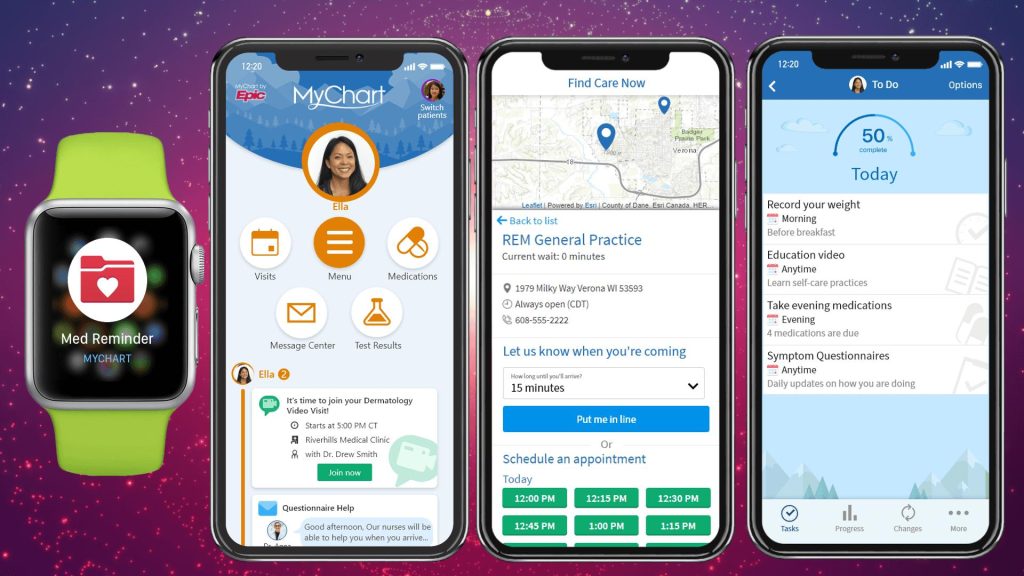
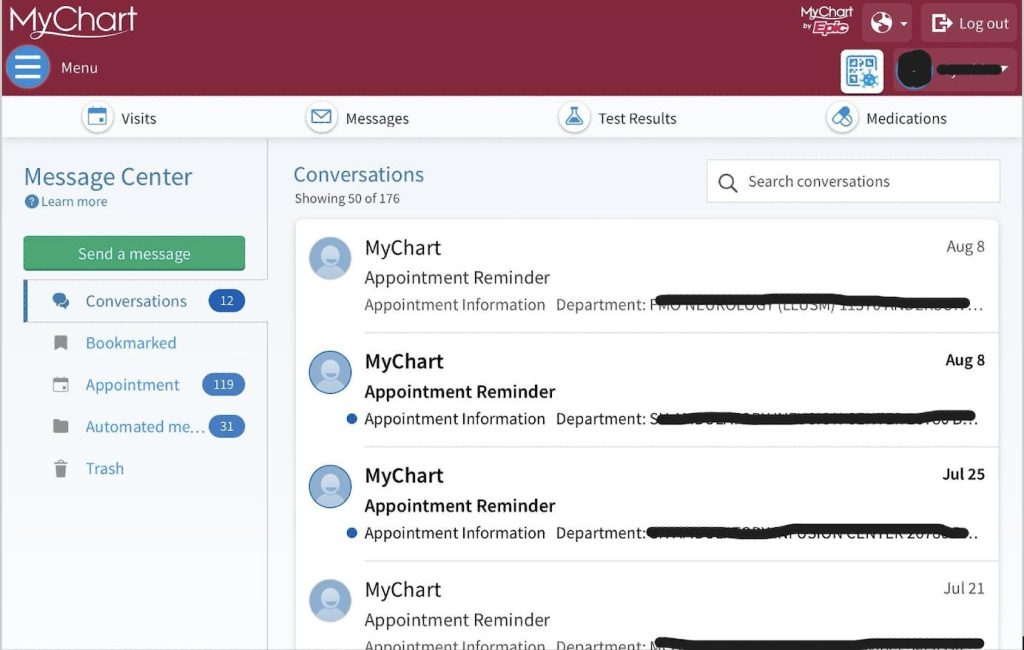
Direct Care Team Messaging Pipeline The encrypted messaging pathway between patients and their assigned care team operates efficiently. Unlike email, which disappears into organizational black holes, MyChart messages trigger notifications on the provider side and generate read receipts. Users report that physicians and nursing staff respond within hours rather than days, and the message thread persists in the patient’s chart. This is mechanically sound and addresses a genuine care coordination gap.
Biometric Session Preservation When the device’s credential store integrates properly with the app, Face ID and fingerprint authentication eliminate password-fatigue friction. The Token persistence allows users to open the app dozens of times daily without re-authentication overhead. This is where MyChart behaves like a modern consumer application rather than a legacy healthcare system.
System Failure Points & Operational Workarounds
Authentication Collapse Under Multi-Tenant Architecture
The Problem: Users attempting to link accounts across independent healthcare organizations (Example: one account for “Erlanger Hospital” and another for “Community Care Associates”) trigger cascading authentication failures. The app reports “Invalid credentials” or “Login does not work” despite identical passwords and fresh installation attempts. Cross-account linking attempts return generic error messages with no actionable recovery path.
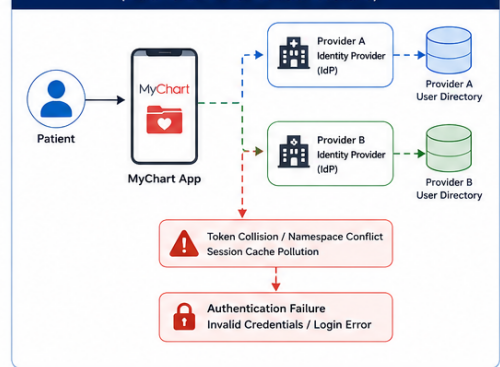
Root Mechanism: Each healthcare organization maintains its own identity provider (IdP) and user directory. When MyChart attempts to unify these sessions within a single app instance, credential validation across tenant boundaries fails because the token exchange protocol doesn’t gracefully handle namespace collisions. The app’s session cache becomes polluted with stale tokens from Provider A that invalidate Provider B’s authentication handshake.
User Workaround Steps:
- Open app Settings → Account Management → “Linked Organizations”
- Manually disconnect ALL secondary organization accounts (even if you plan to reconnect them)
- Force-kill the app process entirely (not just backgrounding it)
- Clear the app’s local data cache: Settings → Apps → MyChart → Storage → Clear All Data
- Restart the device to purge any residual credential tokens from RAM
- Reinstall the app fresh from app store
- Sign in to PRIMARY organization first; wait 60 seconds for token to propagate
- Only after successful primary login, add secondary organizations one at a time with 30-second intervals between each addition
- If adding a second organization still fails, try logging in via the web portal version first, then return to mobile app
Important Note: Users report that merely changing passwords or uninstalling/reinstalling without the cache-clearing step recreates the same failure loop. The local credential store persists corrupted tokens across app reinstalls.
Phantom Billing Balances & Ledger Synchronization Lag
The Problem: Users report that after paying a bill through external payment channels (insurance provider website, hospital bill pay portal, third-party payment gateway), MyChart continues displaying the original balance as outstanding for hours or days. Some users report that the system escalates these “unpaid” accounts to collections despite having proof of payment from the external system. The billing ledger appears to use asynchronous reconciliation, creating windows where the app’s account status contradicts reality.
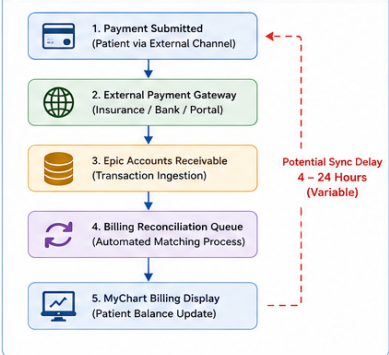
Root Mechanism: Epic’s billing module and MyChart’s consumer-facing ledger view operate on different polling intervals. When a payment hits an external gateway, that transaction must be pulled into Epic’s Accounts Receivable module, reconciled against the patient’s outstanding balance, and then synced back to the MyChart display. This chain of event processing introduces latency of 4-24 hours in some cases. Patients who check their balance immediately after paying see an outdated cache.
User Workaround Steps:
- After making a payment through ANY external channel, do not rely on MyChart’s balance display for the next 24 hours
- Retain your external payment confirmation (email receipt, payment gateway transaction ID, screenshot of confirmation page)
- If MyChart still shows outstanding balance after 48 hours, navigate to: Messages → New Message → Select “Billing” Department
- Attach your external payment proof and include the transaction ID/confirmation number
- Explicitly state: “Payment cleared on [date] via [payment system]. MyChart still shows $X outstanding. Please manually reconcile.”
- Do NOT attempt payment through the in-app payment system until your previous transaction has cleared
- If collections contact occurs despite payment proof, escalate directly to: MyChartSupport@epic.com with subject line “Billing Reconciliation – Escalation Required” and attach external payment confirmation
Critical Detail: Multiple users report that the app’s built-in “Pay Now” button sometimes triggers duplicate charges because it doesn’t validate whether a payment is already in-flight through the backend. Always pay through your healthcare organization’s official billing portal or insurance company site when possible, as these systems integrate directly with Epic’s Accounts Receivable module and bypass the MyChart app’s eventual-consistency layer.
Session Dropout on Network Transitions (WiFi/Cellular Handoff)
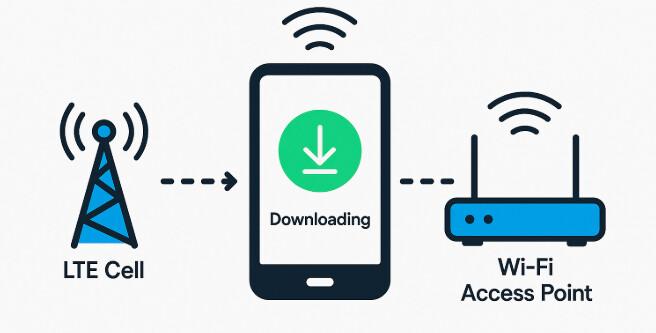
The Problem: Users report app crashes or prolonged loading screens when transitioning between network types (outdoor cellular to hospital public WiFi, WiFi to cellular). The app appears to lose its active session token mid-operation, forcing users back to the login screen or triggering cryptic network errors. This occurs even on recent devices with fresh OS installations.
Root Mechanism: MyChart implements strict IP-binding as a fraud prevention measure. When the device’s network interface changes (cellular IP to WiFi IP), the session’s security validator detects an IP mismatch and invalidates the Token mid-stream. The app lacks graceful Token refresh logic to re-authenticate silently after a network transition, instead crashing or displaying a generic timeout error.
User Workaround Steps:
- Before entering a hospital or switching networks, open MyChart and allow it to fully load the dashboard
- Once loaded, enable Airplane Mode for 10 seconds, then disable it (this prevents mid-operation network switches)
- If you’re already stuck in a crash loop after WiFi transition:
- Force-quit MyChart entirely
- Disable WiFi and rely solely on cellular data
- Reopen MyChart (it will attempt login on cellular)
- Once logged in and viewing data on cellular, you may re-enable WiFi (it will use the newly-established session)
- If the hospital WiFi is mandatory (e.g., during check-in), use the web browser version (mychart.org) instead of the app—browsers handle IP-binding transitions more gracefully than the app’s WebView container
Notification Badge Persistence & Message Indexing Lag
The Problem: Users report that after viewing a notification (new lab result, provider message, appointment change), the notification badge/dot persists on the app icon or message tab for hours, creating false alarm fatigue. Conversely, when users send a message to their provider, they immediately receive a notification for their own outgoing message, creating confusing duplicate indicators.
Root Mechanism: The notification badge state is managed by a separate backend indexing service that operates asynchronously from the message fetch logic. When you view a notification, the app marks it as “read” locally, but the badge-clearing signal doesn’t propagate to the notification service for several hours. Additionally, the outgoing message is immediately visible to the sender while simultaneously triggering a push notification, creating redundant alerts.
User Workaround Steps:
- If a badge persists after you’ve checked all messages/results:
- Open Settings → Notification Preferences
- Disable “Notification Badges” temporarily (24-48 hours)
- Re-enable them after the stale badges clear from the backend index
- To reduce outgoing message notification spam:
- Settings → Communication Preferences → Uncheck “Notify me of my own sent messages”
- If badges are creating urgent-care confusion, manually force a full app refresh:
- Force-quit MyChart
- Reopen it and allow 30 seconds for full cache refresh before checking notification state
App Crashes on Logout and Session Termination
The Problem: Multiple users report that the app crashes during or immediately after logout, forcing them to force-quit and restart. Some users describe a crash loop where the app repeatedly crashes on launch until they clear all app data. Update deployments appear to introduce regressions in session cleanup logic.
Root Mechanism: The app’s session termination routine doesn’t properly invalidate the local credential cache before transitioning to the login screen. On the next launch, the app attempts to re-hydrate the session using stale tokens, triggering authentication exceptions that cascade into crashes.
User Workaround Steps:
- If experiencing post-logout crashes:
- Do NOT try to relaunch the app immediately
- Go to Settings → Apps → MyChart → Force Stop (hard kill)
- Wait 30 seconds
- Go to Settings → Apps → MyChart → Storage → Clear Cache (NOT Clear All Data)
- Relaunch the app
- If crashes persist across multiple launches:
- Proceed to full data clear: Settings → Apps → MyChart → Storage → Clear All Data
- Reinstall the app from app store
- Log in fresh
Multi-Message Workflow Limitations & Character Truncation
The Problem: When composing messages to providers, users report that the app:
- Doesn’t allow editing of already-sent messages
- Truncates character input without clear warning before the user hits “Send”
- Doesn’t visually indicate character count or remaining space
This creates scenarios where users discover their message was cut off mid-sentence only after it’s been delivered to their care team.
User Workaround Steps:
- Before sending any message, compose your full text in a separate Notes app or email draft
- Copy the text and paste into MyChart’s message field
- Manually count characters (most phones can do this natively: highlight text → Look Up → Word Count) to verify you’re under the limit
- If you need to add information after sending, craft a follow-up message with a subject like “[FOLLOWUP TO PREVIOUS MESSAGE]” so your provider knows it’s a continuation
- For complex multi-point clinical questions, consider using the web portal (mychart.org) where message composition interfaces typically offer more space and better editing affordances
Incomplete Data Visibility: Missing Imaging & Medication Transparency
The Problem: Users report that while lab results are visible, X-rays, CT scans, and other imaging studies often do not appear in MyChart despite being completed in the hospital system. Additionally, medication lists sometimes lack dosage frequency or clarity on whether prescriptions are active or discontinued.
Root Mechanism: Imaging metadata integration requires additional configuration at the healthcare organization level. Not all sites have enabled image access in MyChart due to infrastructure or compliance complexity. Medication list synchronization depends on proper pharmacy system integration; if a provider’s practice uses legacy pharmacy software, MyChart may not pull dosage and frequency data reliably.
User Workaround Steps:
- If you don’t see imaging that you know was performed:
- Message your care team directly: “I had [X-ray/CT/MRI] on [date]. It’s not visible in MyChart. Can you share the report or verify access is enabled?”
- Organizations can enable imaging visibility—it’s often a configuration that hasn’t been activated
- For medication discrepancies:
- Download your “After Visit Summary” PDF from your last appointment—this usually contains the most accurate medication list with dosages
- Cross-reference with your pharmacy’s records (call your pharmacy directly if needed)
- Never assume MyChart’s medication list is the source of truth; it’s a display layer over backend data that may not sync perfectly
Survival Guide for Daily Use
Isolate Your Credentials by Organization If you’re managing multiple healthcare provider accounts, do not attempt to link them in MyChart unless you’ve successfully tested the connection on a stable network with no time pressure. The multi-tenant linking logic remains fragile; single-provider operation is the most stable mode.
Treat External Bill Payments as the Source of Truth Do not rely on MyChart’s balance display as your payment verification. Always keep external payment confirmations (email receipts, transaction IDs). If MyChart shows a balance 48+ hours after you paid externally, escalate to billing via in-app messaging with proof attached.
Validate Critical Information Against Source Documents Before any medical decision based on app data—especially medication changes, lab value interpretation, or dosage confirmation—download and review the official “After Visit Summary” PDF or call your provider directly. The app is a display layer; PDFs and direct provider conversation are the record of truth.
Manage Your Notification Settings Aggressively Disable non-critical notifications (appointment reminders, general health tips, system messages) to prevent notification fatigue masking urgent provider messages. Keep only “New Messages from Care Team” and “Lab Results Available” enabled.
Perform Quarterly Credential Refresh Every 90 days, force the app to rebuild its session and credential cache: Settings → Apps → MyChart → Storage → Clear Cache. This prevents token staleness from accumulating and reduces crash probability on extended usage.
Final Technical Verdict
Deployment Recommendation: MyChart is a functional health data aggregator suitable for patients managing a single healthcare relationship and willing to absorb workflow friction on cross-organization scenarios. It delivers reliable appointment visibility, provider messaging, and lab access when the underlying EHR system is properly configured at the organization level. Performance degrades sharply under network transitions and multi-tenant account linking, requiring manual credential isolation and cache management. For patients relying on data integration across multiple independent healthcare systems, MyChart remains unreliable without administrator intervention at the organization level. Use it as your primary patient portal when a single provider recommends it; supplement it with web portal access and direct provider contact for cross-system coordination.
Download MyChart APP

Note: This evaluation is based on aggregated user feedback from deployment reports dated April 2026 – June 2026. Specific functionality and failure modes may vary by healthcare organization’s Epic configuration version. Contact your healthcare provider’s IT support for organization-specific issues rather than Epic directly, as many problems originate in local configuration rather than the MyChart application itself.